http://meatfighter.com/nintendotetrisai/
When I was a kid, I kept track of the pieces I received in Tetris on a piece of paper, because I was convinced that the in game stats were lying (they weren't).
This guy wrote 25,000 words about the inner workings of Tetris (including an interesting RNG, which is actually truly random in practice).
Even if you don't understand or care about the technical details I recommend you skim through it, as there were a lot of interesting items.
Friday, May 30, 2014

Tuesday, May 27, 2014
Friday, May 2, 2014
The Graphing Calculator Story
http://www.pacifict.com/Story/
People around the Apple campus saw us all the time and assumed we belonged. Few asked who we were or what we were doing.When someone did ask me, I never lied, but relied on the power of corporate apathy. The conversations usually went like this:
Q: Do you work here?
A: No.
Q: You mean you're a contractor?
A: Actually, no.
Q: But then who's paying you?
A: No one.
Q: How do you live?
A: I live simply.
Q: (Incredulously) What are you doing here?!
Wednesday, April 30, 2014
Sunday, April 27, 2014
Block editing text in Notepad++ or Geany
The other day I showed the concept of block editing text to 3 different people in 3 different contexts. All were unaware of it, and agreed it was a very useful feature.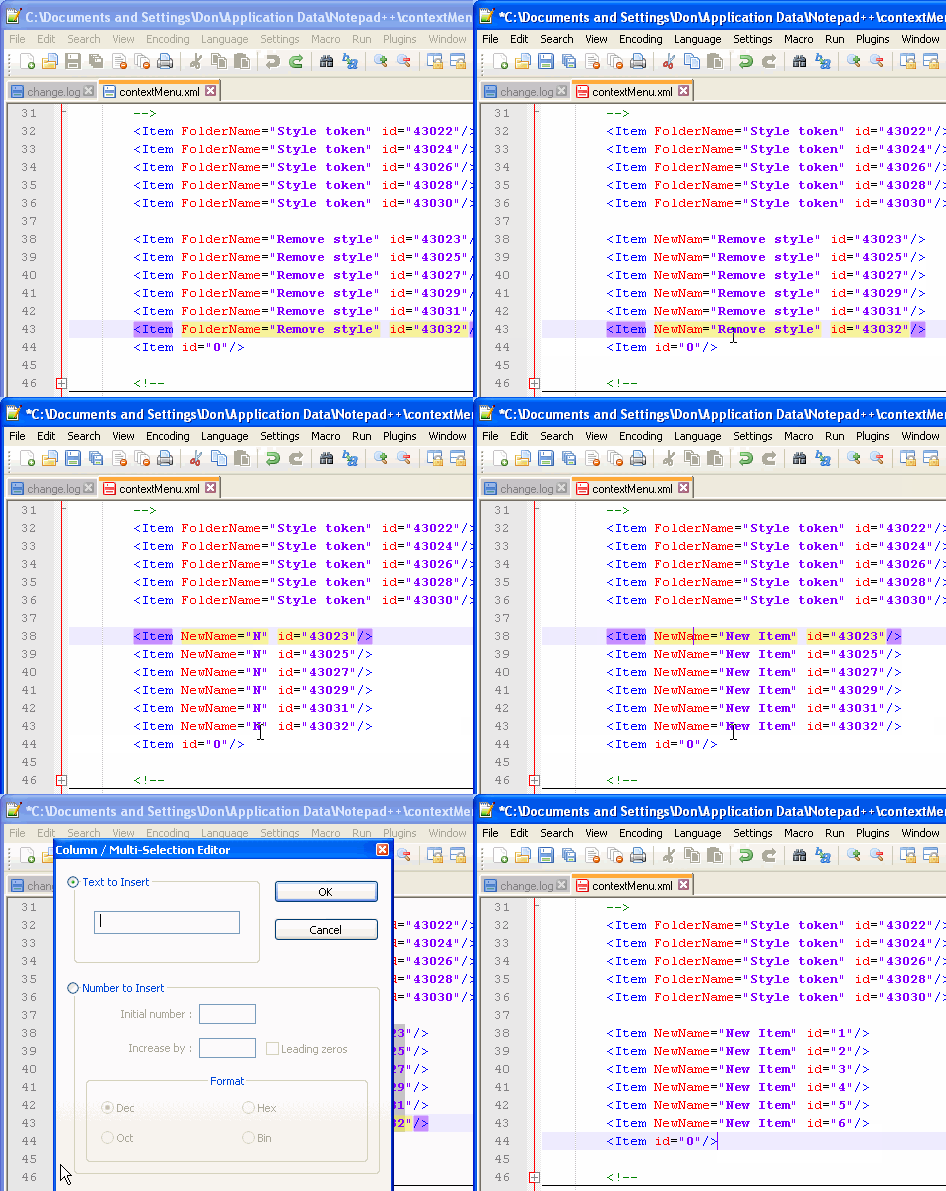
Block editing allows you to drag your cursor down across several rows of text and edit them all at once. Two main uses are to either type on several rows at once, or to select a column of data to be copied to somewhere else.
In Notepad++ it is Alt + Shift, in Geany is it Ctrl + Shift.
Consider this data:
-7.1382    6918.30976

-7.4637    7244.35

-7.7947    7585.7757

-8.1307    7943

-8.4715    8317.637

-8.8169    8709.635

-9.1664    9120.1

-9.5199    9549.9258

-9.8770   10000
If you wanted to remove those negatives, there are a few ways you could go about it, but with the ability to drag your cursor across several rows it is a simple matter to drag it down those rows and delete the negative.
If you wanted to paste this into a spreadsheet it may be able to figure out how to separate the columns, but by just selecting one column at a time and pasting it you can guarantee each column will end up organized properly.
I think block editing is pretty self explanatory, and the stolen gif does a good job of showing its potential. However, I'd like to also touch on using find and replace.
Ctrl+H will bring up the find and replace box. There is an option for regular, extended (escape sequences), or regex. I prefer the extended option. Let's say we wanted to enclose all the above data in quotes, separated by commas, and semicolons for each pair. In other words we want this output:
"-7.1382", "6918.30976";

"-7.4637", "7244.35";

"-7.7947", "7585.7757";

"-8.1307", "7943";

"-8.4715", "8317.637";

"-8.8169", "8709.635";

"-9.1664", "9120.1";

"-9.5199", "9549.9258";

"-9.8770", "10000"
This is a pretty common format for input to various programs. First, I would use block editing to change the spaces to ", " which admittedly wouldn't work for the last one. If there were more of varied length I'd have to use a regex to check for multiple spaces (\s+). The real usefulness comes from find and replace with newlines.
The newline character (\n) represents the each line break. Search for that, and in the replace box enter ";\n" If you want the output to just be on the same line leave out the \n from the replace text, maybe use a space instead. On Windows you will likely need to use \r\n instead of just \n (\r = return, \n = newline).
These two techniques have saved me countless hours manually formating text.
Jack Churchill
http://en.wikipedia.org/wiki/Jack_Churchill
Lieutenant Colonel John Malcolm Thorpe Fleming "Jack" Churchill, DSO & Bar, MC & Bar (16 September 1906 – 8 March 1996), nicknamed Fighting Jack Churchill and Mad Jack, was a British soldier who fought throughout the Second World War armed with a longbow, and a Scottish sword (a basket-hilted claybeg commonly but incorrectly called a claymore). He is known for the motto "any officer who goes into action without his sword is improperly dressed." Churchill also carried out the last recorded bow and arrow killing in action, shooting a German officer in 1940 in a French village.
Friday, April 4, 2014

Saturday, March 29, 2014
Friday, March 28, 2014
Monday, March 24, 2014
Backups to/from a Linux machine from Windows
Intro
I'm currently using Windows 7 on a laptop and Linux at home on my PC. I plan on switching the laptop to Linux at some point, but for now I wanted to be able to back files up to my home PC over the internet. Now if you're a normal person there are plenty of services that do this for you (eg, Dropbox), but if you're me, then you insist upon doing it manually and having total control.
Linux on Windows
Step one is to get a Linux like environment on Windows. This means installing Cygwin. You will want to install openssh, rsync, git, and whatever languages you may want to program in.
With Cygwin you should be able to directly use linux commands in the Windows command prompt. Use '
SSH
SSH (Secure SHell) allows you to log in to a remote machine over an encrypted connection. Once logged in you have the same control as you would in a shell prompt on that machine locally. It supports public key encryption so that we can login without a password prompt.
As it is, you can log in with just the password using
Generate Keys
Now it is time to generate some ssh keys to allow you to log into your home computer remotely. There are two ways to use ssh keys. You can generate keys that require a password to use, or you can generate keys that do not require a password. If you use passwordless keys, then you will have a private key file that anyone could use to login to any computer where you've set it up to allow logins with that key. Of course, you can keep the key on an encrypted laptop, and if they laptop is stolen or you have reason to believe the key was stolen it's as easy as deleting the key from the remote computer.
Passwordless keys are nice, and I use one to admin my site, but for my home PC I didn't want to allow access with just the keyfile. This complicated the commands slightly, but I will get to that later.
Generating keys is easy. Just run
rsync
Now that you have the ability to log in to the remote machine you can make some scripts to move files between them. rsync is nice for this because it will automatically use ssh to tunnel the connections to hide the data on public networks, and it does a good job of only sending the data that has changed. Because I used a password with my key I wanted to combine the rsync commands into one, so I only had to enter my password once. I made 4 batch files. Two each to receive files, and to send files, and then one set for going over the local network, and one for going over the internet. My local receive command looks like this:
Closing
These are all pretty rudimentary, but they have been working well for me for a few months. As it stands, they never delete a file, so if you move something you must manually delete it's old location on both the remote machine and local between syncs. There are flags to do this automatically, but I kind of like it as is.
I'm currently using Windows 7 on a laptop and Linux at home on my PC. I plan on switching the laptop to Linux at some point, but for now I wanted to be able to back files up to my home PC over the internet. Now if you're a normal person there are plenty of services that do this for you (eg, Dropbox), but if you're me, then you insist upon doing it manually and having total control.
Linux on Windows
Step one is to get a Linux like environment on Windows. This means installing Cygwin. You will want to install openssh, rsync, git, and whatever languages you may want to program in.
With Cygwin you should be able to directly use linux commands in the Windows command prompt. Use '
ls' to test this.SSH
SSH (Secure SHell) allows you to log in to a remote machine over an encrypted connection. Once logged in you have the same control as you would in a shell prompt on that machine locally. It supports public key encryption so that we can login without a password prompt.
As it is, you can log in with just the password using
ssh dale@192.168.1.123. Replace dale with your account on the remote machine. You can use an actual IP to log in over the internet, but first you have to forward port 22 on your router.Generate Keys
Now it is time to generate some ssh keys to allow you to log into your home computer remotely. There are two ways to use ssh keys. You can generate keys that require a password to use, or you can generate keys that do not require a password. If you use passwordless keys, then you will have a private key file that anyone could use to login to any computer where you've set it up to allow logins with that key. Of course, you can keep the key on an encrypted laptop, and if they laptop is stolen or you have reason to believe the key was stolen it's as easy as deleting the key from the remote computer.
Passwordless keys are nice, and I use one to admin my site, but for my home PC I didn't want to allow access with just the keyfile. This complicated the commands slightly, but I will get to that later.
Generating keys is easy. Just run
ssh-keygen, and answer the questions. You now have the .ssh directory in your home directory. Inside, should be (at least) two files. First is id_rsa, which is your private key and must be protected. The second file is id_rsa.pub, and that is your pubic key. As the name implies there is no need to keep this a secret. You will place this file on any machine you want to be able to log in to.
To allow you to log in to a remote machine, find the .ssh directory in your home directory, and then the authorized_keys file in it. Copy and paste the public key text string into that file.
You may need to restart some processes, but you should now be able to log in from the laptop to the remote machine. You use the same command as above, but with the username you put in the ssh key (which can be the same as you use on different machines, Linux will pair it with @host to make it unique).
rsync
Now that you have the ability to log in to the remote machine you can make some scripts to move files between them. rsync is nice for this because it will automatically use ssh to tunnel the connections to hide the data on public networks, and it does a good job of only sending the data that has changed. Because I used a password with my key I wanted to combine the rsync commands into one, so I only had to enter my password once. I made 4 batch files. Two each to receive files, and to send files, and then one set for going over the local network, and one for going over the internet. My local receive command looks like this:
rsync -ahvz ---progress --stats dale@192.168.1.123:/home/dale/Documents/ /cygdrive/C/Users/Dale/Documents/
pausersync -ahvz --progress --stats Other Programming School dale@192.168.1.123:/home/dale/Documents/
pauseC:\windows\system32\drivers\etc\hosts, Simply add a line with the IP and then a name, like: 123.456.78.90 home
. Then you can replace that IP with the name in scripts or on the command line.
Closing
These are all pretty rudimentary, but they have been working well for me for a few months. As it stands, they never delete a file, so if you move something you must manually delete it's old location on both the remote machine and local between syncs. There are flags to do this automatically, but I kind of like it as is.
Subscribe to:
Posts (Atom)